Blog

  • CAIPTV Smart TV Setup: Easy Installation Guide for 2026

    CAIPTV Smart TV Setup: Easy Installation Guide for 2026

    CAIPTV Smart TV Setup: Easy Installation Guide for 2026

    Setting up CAIPTV on a Smart TV can be straightforward when you have a compatible television, a reliable internet connection and the correct streaming application. Whether you own a Samsung, LG, Sony, TCL or another Smart TV, this guide explains how to prepare your device and configure a compatible player.

    This CAIPTV Smart TV setup guide covers application installation, playlist configuration, connection requirements and common troubleshooting steps. Follow the instructions for your television’s operating system.

    1. What Do You Need Before Setting Up CAIPTV?

    Before starting your CAIPTV Smart TV setup, prepare the following:

    • A Smart TV connected to the internet.
    • A compatible IPTV player available for your television.
    • Your authorized subscription login details.
    • An M3U playlist URL or Xtream Codes credentials, depending on the application.
    • A stable Wi-Fi or Ethernet connection.
    Helpful tip: Keep your subscription information nearby. Some applications require a username, password and server URL, while others accept an M3U playlist.

    2. How to Set Up CAIPTV on Samsung Smart TV

    Samsung Smart TVs use the Tizen operating system. Applications must be compatible with Tizen and available through the Samsung Apps store in your region.

    Installation steps

    1. Turn on your Samsung Smart TV.
    2. Connect the television to Wi-Fi or Ethernet.
    3. Press the Home button on your remote control.
    4. Open the Apps section.
    5. Search for a compatible IPTV player.
    6. Install the application from the official Samsung store.
    7. Open the application and follow its setup instructions.
    8. Enter your authorized M3U playlist or Xtream Codes details.
    9. Save your settings and allow the playlist to load.

    Application availability depends on your Samsung TV model, operating system and country. If a particular player is unavailable, check for another compatible application.

    3. How to Set Up CAIPTV on LG Smart TV

    LG Smart TVs generally use webOS. The installation process is similar to Samsung, but applications are downloaded through the LG Content Store or the Apps section.

    Installation steps

    1. Connect your LG television to the internet.
    2. Press the Home button on your remote.
    3. Open the LG Content Store or Apps.
    4. Search for a compatible IPTV player.
    5. Install and launch the application.
    6. Follow the application’s instructions to add a playlist.
    7. Enter your subscription details if requested.
    8. Save the configuration and refresh the application.

    Remember that not every IPTV application supports every LG television. Check the application requirements before installation.

    4. How to Set Up CAIPTV on Android TV and Google TV

    Android TV and Google TV provide access to a wide selection of streaming applications through Google Play.

    Compatible televisions include selected models from Sony, TCL, Philips and other manufacturers.

    Installation steps

    1. Open Google Play on your television.
    2. Search for a compatible IPTV player.
    3. Select the application and install it.
    4. Launch the application.
    5. Select the option to add a new user or playlist.
    6. Choose M3U or Xtream Codes if supported.
    7. Enter your subscription credentials.
    8. Save the details and wait for the content to load.

    Always use applications from official stores or verified developers. Avoid unknown APK downloads.

    5. Which Smart TV Is Compatible With CAIPTV?

    Compatibility depends on the television’s operating system and the player you choose.

    TV Brand Operating System Installation Method
    Samsung Tizen Samsung Apps
    LG webOS LG Content Store
    Sony Android / Google TV (selected models) Google Play
    TCL Google TV / Android TV (selected models) Google Play
    Philips Android / Google TV (selected models) Google Play

    Check your television’s exact model and operating system before choosing an application.

    6. How to Improve Streaming Quality on Your Smart TV

    A good internet connection is important for a smooth streaming experience. If channels buffer frequently or videos take too long to load, try these recommendations.

    Use a stable internet connection

    Connect your television to a reliable Wi-Fi network. If possible, use an Ethernet cable to create a more consistent connection.

    Restart your television and router

    Restarting your TV and router can resolve temporary network problems. Wait until your internet connection is restored before opening the streaming application again.

    Keep your applications updated

    Install available updates for your television’s operating system and streaming application. Updates can improve compatibility and fix software problems.

    Close unnecessary applications

    Running too many applications in the background can affect some Smart TVs. Close applications you are not using and try streaming again.

    7. Common CAIPTV Smart TV Setup Problems

    The application does not appear in the TV store

    Some applications are unavailable in certain regions or on older television models. Check the supported device list or consider using a compatible external streaming device.

    Channels are not loading

    Check your internet connection and make sure your subscription details have been entered correctly. Also verify that your playlist has not expired.

    The application displays an authentication error

    Check your username, password and server address. Make sure there are no missing characters or unwanted spaces.

    Streaming keeps buffering

    Restart your router, improve your Wi-Fi signal and test your connection using another application. If the problem continues, contact your provider to check the service.

    The electronic programme guide is empty

    Some applications require a separate EPG address. Check whether your subscription supports an electronic programme guide and whether the correct information has been entered.

    8. Can You Use CAIPTV Without a Smart TV?

    Yes, provided you have a compatible external streaming device and an application that supports your subscription.

    Options may include:

    • Amazon Fire TV devices.
    • Android TV boxes.
    • Google TV streaming devices.
    • Compatible streaming hardware.

    Connect the device to your television using HDMI, connect it to the internet and install a compatible streaming player.

    Read our CAIPTV compatible devices guide for more information.

    9. Frequently Asked Questions

    Can I install CAIPTV directly on my Samsung Smart TV?

    You can use a compatible player from the Samsung Apps store if one is available for your television model and region.

    Does CAIPTV work on LG Smart TVs?

    It can work through a compatible webOS application that supports your subscription’s connection method.

    Do I need an Android box for CAIPTV?

    Not necessarily. A compatible Smart TV may run a suitable player directly. An external device is an alternative when the TV does not support the application you need.

    Can I use an M3U link on my Smart TV?

    Yes, if your chosen application supports M3U playlists. Enter the link exactly as provided by your authorized service provider.

    Why is my Smart TV buffering?

    Possible causes include weak Wi-Fi, network congestion, application problems or temporary service interruptions.

    Do all Smart TVs support the same applications?

    No. Samsung, LG and Android TV use different operating systems and application stores. Always check compatibility.

    10. Get Help With Your CAIPTV Setup

    Having difficulty configuring your Smart TV? The correct application and connection method depend on your television model.

    Contact the CAIPTV4K support team for assistance with compatible applications and subscription configuration.

    Ready to Explore CAIPTV4K?

    Discover available subscription options and find a plan that matches your streaming needs.

    Contact Us on WhatsApp

    Related guides:

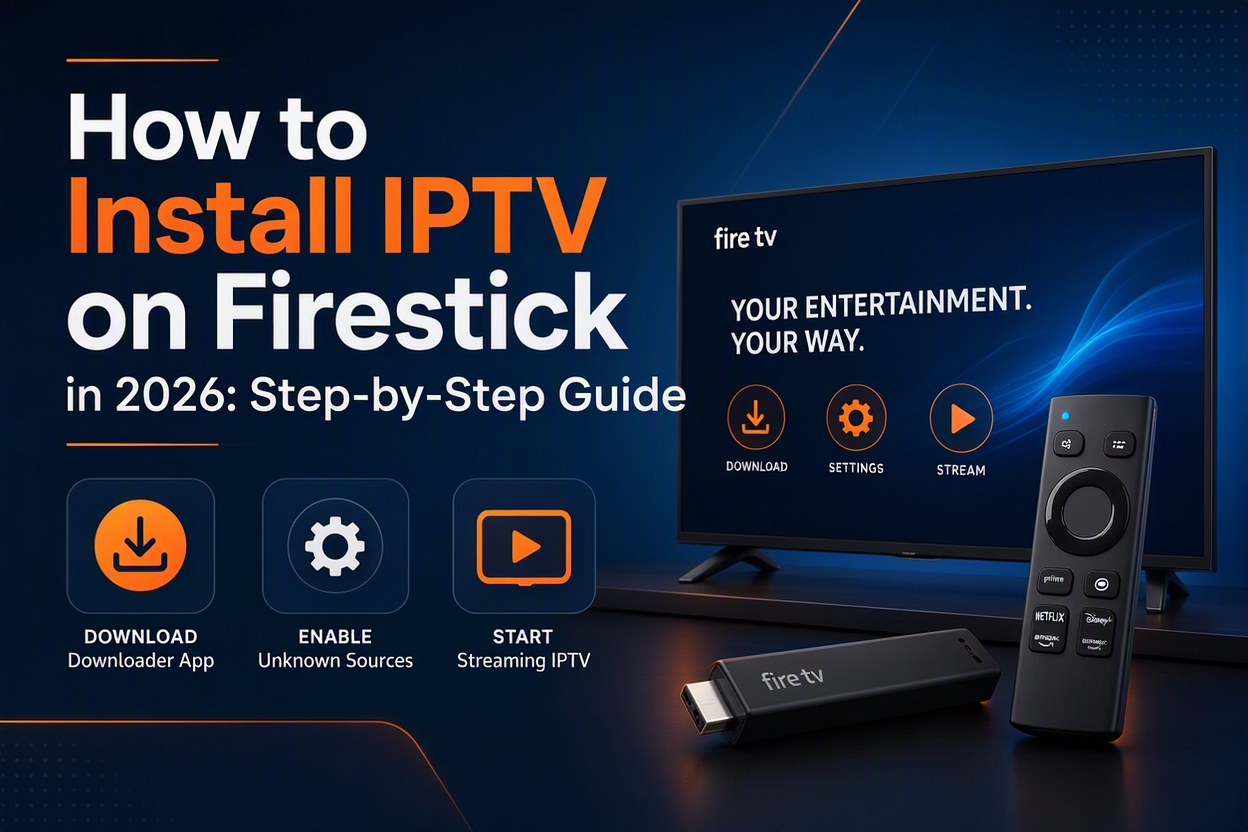
  • How to Install IPTV on Firestick in 2026: Step-by-Step Guide

    How to Install IPTV on Firestick in 2026 Step-by-Step Guide

    How to Install IPTV on Firestick in 2026: Step-by-Step Guide

    Want to watch your compatible streaming content on an Amazon Fire TV Stick? This guide explains how to choose a compatible IPTV player, install it through an official app store when available, configure your subscription, and troubleshoot common streaming problems.

    Updated October 2026 · 8–10 minute read

    How to Install IPTV on Firestick: Quick Answer

    To use IPTV on a Firestick, connect the device to your TV and Wi-Fi, search the Amazon Appstore for a compatible streaming player, install the app, and enter the playlist or account information supplied by your authorized service provider. Available apps and installation methods vary by Fire TV model, region, and software version.

    Remember that a streaming player is different from a content subscription. Installing a player does not automatically provide channels, movies, or television programs.

    1. What You Need Before Starting

    Before installing an IPTV player on your Amazon Fire TV Stick, prepare the following items:

    • An Amazon Fire TV Stick connected to your television.
    • A stable internet connection.
    • Access to the Amazon Appstore, where available.
    • A compatible streaming application.
    • Valid account or playlist details from an authorized provider, if required.

    Check that your Firestick has enough free storage and that its software is up to date. Keeping the device updated can improve compatibility and help resolve installation issues.

    2. Choose a Compatible IPTV App

    IPTV applications act as players for streaming content. Some support playlist URLs, while others accept account credentials or different connection formats. Check the application’s official documentation before choosing one.

    When comparing apps, consider:

    • Compatibility with your Fire TV device.
    • Support for your provider’s connection format.
    • Ease of navigation with the Fire TV remote.
    • Electronic program guide (EPG) support, if needed.
    • Developer reputation, privacy policy, and update history.

    Search for compatible players directly in the Amazon Appstore. Availability can change, so verify the current listing and developer before installing an application.

    3. Install Your Streaming App on Firestick

    Step 1: Open the Fire TV home screen

    Turn on your television and select the HDMI input connected to your Firestick. From the home screen, navigate to the search function.

    Step 2: Search for the application

    Enter the name of the compatible streaming player you want to use. Open its official store listing and check the supported devices and publisher information.

    Step 3: Download and install

    Select the download or get option shown on the listing. Wait for installation to finish, then open the app.

    Step 4: Open the installed application

    Follow the application’s setup instructions. Depending on the app, you may be asked to add a playlist, enter account details, or connect to a supported service.

    Important: If an application is unavailable in your region, do not assume that an unofficial download is safe. Check the developer’s official instructions and your device’s current security guidance before considering any alternative installation method.

    4. Configure Your IPTV App

    Once the app is installed, follow the setup method supported by your provider and player. The exact labels and menus differ between applications.

    Option A: Playlist URL

    If the player supports an M3U playlist, open its playlist or media source section and enter the URL supplied by your authorized provider. Save the settings and allow the app to load the available content.

    Option B: Account login

    Some players support a username, password, and server address. Enter these details exactly as provided. Check for spaces, typing errors, and expired credentials if the login fails.

    Option C: Provider-specific setup

    Some services use their own application or activation process. Follow the provider’s official instructions rather than entering credentials into an unrelated application.

    Never share your password, activation code, or private playlist URL publicly. These details may grant access to your account.

    5. Test Your Streaming Connection

    After setup, test a few items that you are authorized to access. Confirm that playback starts, audio and video are synchronized, and navigation works with your remote.

    For a smoother experience:

    • Place your Firestick where it receives a strong Wi-Fi signal.
    • Pause large downloads on other devices if your connection is congested.
    • Close apps that are not being used.
    • Restart your router and Firestick if playback repeatedly fails.
    • Use a wired network adapter if your setup supports one.

    Higher-resolution video generally requires more bandwidth. Actual performance depends on your internet connection, device, and the streaming source.

    6. Troubleshooting Common Firestick IPTV Problems

    The app does not appear in search

    Check the spelling, your Amazon account’s region, device compatibility, and the official app listing. An app may not be available for every Fire TV model or country.

    The app will not install

    Check available storage, restart the Firestick, and install pending system updates. If the problem continues, consult Amazon’s official support documentation.

    Login or playlist errors

    Verify that the supplied details are correct and still active. Confirm that the player supports the connection format. Contact your provider if the account or playlist remains unavailable.

    Buffering or freezing

    Test your internet connection, move closer to the router, restart networking equipment, and try a lower video resolution if the player offers that option. Persistent buffering can also originate with the streaming provider.

    Black screen or no sound

    Try another authorized stream, close and reopen the app, and restart the device. Check your television’s input, volume, and audio settings. Update the player if an update is available from its official source.

    The app keeps crashing

    Restart the Firestick and check storage and software updates. Clearing an application’s cache may help, but clearing its data can remove saved settings or login details. Reinstall only if necessary.

    7. Security and Streaming Tips

    Use reputable applications and verify the source of any download. Avoid unknown APK files, suspicious activation pages, and requests for unnecessary personal information.

    Review the provider’s terms, pricing, cancellation policy, and privacy practices before subscribing. Make sure you have the right to access the channels and other content offered by the service in your region.

    Keep your Amazon account secure, use unique passwords, and do not publish account credentials or private playlist links.

    Explore CAIPTV4K Resources

    If you are comparing streaming options, visit these resources to learn more about available plans, compatible devices, and setup instructions.

    Frequently Asked Questions

    Can I install IPTV on an Amazon Firestick?

    Yes. You can use a compatible streaming player on supported Fire TV devices. Availability and installation methods depend on the device, app, and region.

    Is IPTV free on Firestick?

    Some applications are free to download, but this does not mean that all content is free. Some services require a paid subscription, and you should verify that any content source is authorized.

    Do I need a subscription to use an IPTV player?

    It depends on the application. A player may require a separate, authorized content source or subscription to display programming.

    Why is my IPTV buffering on Firestick?

    Buffering can result from weak Wi-Fi, network congestion, insufficient bandwidth, device limitations, or problems with the streaming source. Test the connection and restart the device before contacting support.

    Can I use the same service on other devices?

    Some providers support multiple device types, but compatibility and simultaneous-stream limits vary. Check your provider’s terms before signing in on another device.

    Is it safe to install IPTV apps?

    Safety depends on the app and its source. Prefer official app stores and verified developer instructions, review permissions, and avoid untrusted downloads.

    Ready to Explore Your Streaming Options?

    Visit CAIPTV4K to review the available plans, check device compatibility, and read the setup information before making a decision.

    View CAIPTV4K Plans

    Check service availability, terms, and content authorization before subscribing.

    Check that your Firestick has enough free storage and that its software is up to date. For additional setup instructions, visit Amazon Fire TV Support .

    Search for compatible players in the Amazon Appstore . Check the current listing and developer information before installing.

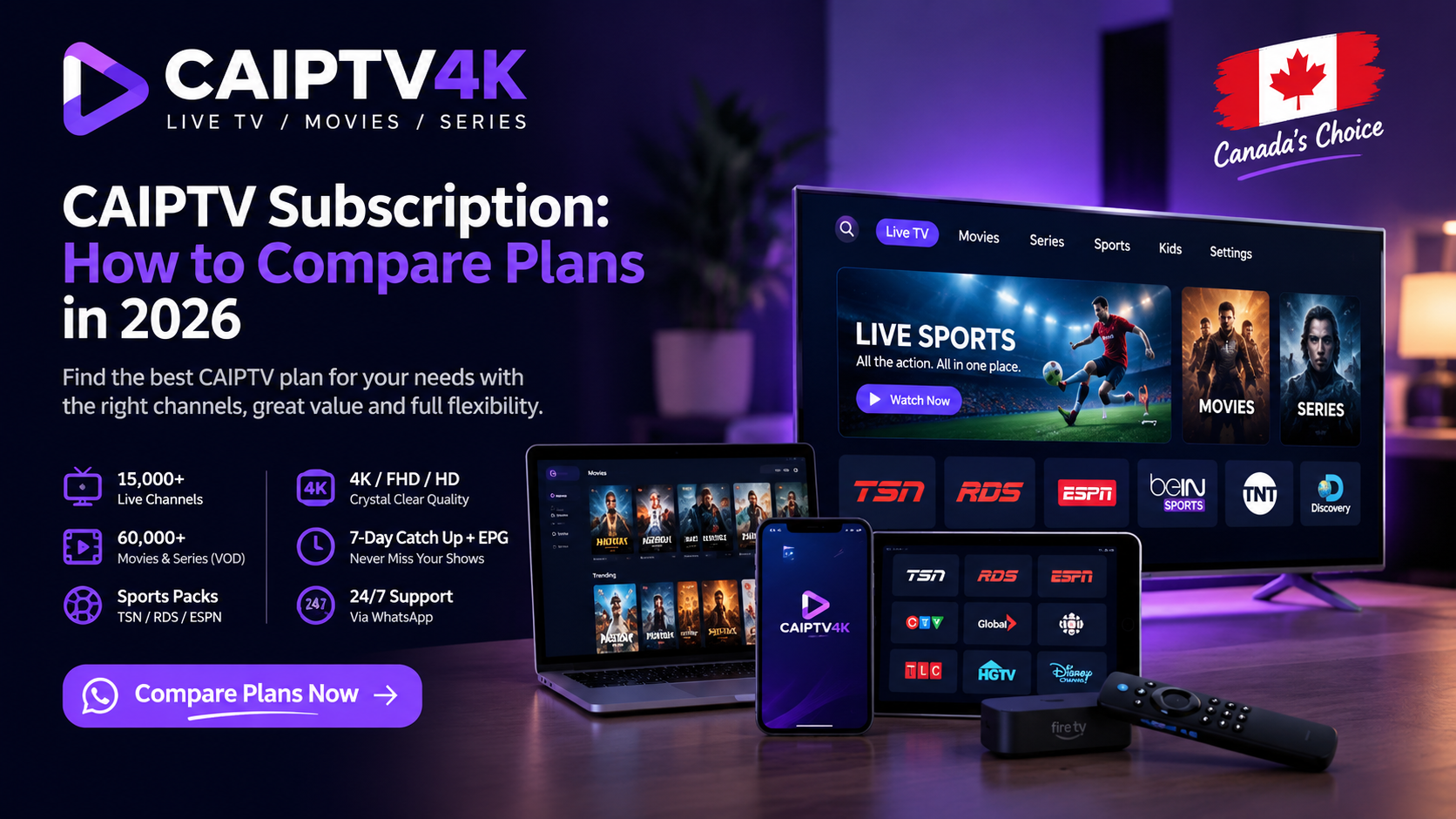
  • CAIPTV Subscription: How to Compare Plans in 2026

    caiptv subscription
    CAIPTV Subscription: Best Plans to Choose in 2026
  • caiptv

    caiptv
    CAIPTV: Complete Streaming Guide for 2026
    STREAMING GUIDE

    CAIPTV: Complete Streaming Guide for 2026

    Updated October 2026 · CAIPTV4K Guide

    CAIPTV is a search term people use when looking for internet TV streaming services, subscription options, compatible devices, and setup instructions. IPTV (Internet Protocol Television) delivers television content over an internet connection rather than exclusively through traditional cable or satellite systems.

    In this 2026 guide, you’ll learn how CAIPTV works, which devices may support IPTV applications, how to prepare your internet connection, what to check before choosing a subscription, and how to troubleshoot common streaming problems.

    If you’re researching CAIPTV4K, visit the CAIPTV4K website to explore its published information about plans, devices, installation, and service conditions.

    What Is CAIPTV?

    CAIPTV is a term associated with searches for internet television and streaming services. IPTV stands for Internet Protocol Television, which describes the delivery of television content over internet protocol networks.

    It is helpful to distinguish an IPTV service from an IPTV player. A service provides access to content, subject to its offering and distribution rights. A player is an application that displays compatible streams or playlists.

    Installing a player does not automatically provide access to channels or a paid subscription. Access depends on the content source and the credentials or playlist supplied through a legitimate provider.

    To learn more about the website associated with this keyword, visit CAIPTV4K.com.

    How Does IPTV Work?

    IPTV uses internet networking to deliver video to a compatible device. The provider prepares the content for delivery, sends it over a network, and compatible software processes the stream for playback.

    Content Delivery

    Depending on the service, content may include live programming or on-demand video. The available selection depends on the provider and its authorization to distribute that content.

    Playback on Your Device

    A compatible application displays the stream. Some applications also support channel lists, programme guides, and other features. Availability varies by software, device and provider.

    The Role of Your Internet Connection

    Playback quality depends on network stability, available bandwidth, device performance and the provider’s infrastructure. A fast connection helps, but it cannot guarantee uninterrupted playback.

    Which Devices Can Support IPTV?

    Many IPTV applications are designed for specific device platforms. Before choosing a service, check its compatibility requirements and confirm which applications it supports.

    Smart TVs

    Some Smart TVs support IPTV player applications through their app stores. Compatibility depends on the television’s operating system, model and available software.

    Fire TV and Android TV Devices

    Compatible streaming devices can provide access to supported media applications. Check application availability and use trusted installation sources.

    Phones, Tablets and Computers

    Some players support mobile devices and computers, allowing viewers to use compatible streams on different screens. Supported operating systems and formats vary.

    Helpful tip: Check the CAIPTV4K Devices page for the compatibility information published on the website. Confirm support for your exact device before purchasing.

    How to Prepare for IPTV Installation

    1. Check Your Internet Connection

    Test your connection and make sure it is stable in the room where you intend to stream.

    2. Identify Your Device

    Find your device model and operating system. These details help you determine which applications are compatible.

    3. Install Compatible Software

    Use an official app store or trusted software source. Check the application’s requirements before installing it.

    4. Follow Your Provider’s Instructions

    Depending on the service, you may need login credentials, a server address or a compatible playlist. Only use access details supplied through a legitimate source.

    For further guidance, visit the CAIPTV4K Installation page.

    What to Consider When Choosing a CAIPTV Subscription

    Content and Channel Availability

    Check the current channel list and confirm that the programmes you want are included. Availability may differ by location and subscription.

    Price and Subscription Duration

    Compare the total price, subscription length, renewal terms, cancellation process and refund conditions. A longer plan may reduce the monthly equivalent while requiring more money upfront.

    Review the information on the CAIPTV4K Plans and Pricing page before making a purchase.

    Customer Support and Trial Conditions

    Look for clear contact information and setup instructions. If a trial is advertised, check its duration, requirements and any payment conditions.

    You can check the CAIPTV4K Free Trial page for published trial information.

    Licensing and Transparency

    Verify that a provider is authorized to distribute its advertised content. Review its policies and payment terms before sharing personal information or purchasing access.

    Internet Speed and Streaming Quality

    Streaming requirements depend on resolution, video compression, the number of simultaneous streams and the service itself. There is no single internet speed that guarantees flawless playback in every situation.

    • Use Ethernet when practical for a stable connection.
    • Position your Wi-Fi router away from major obstacles.
    • Reduce competing downloads and streams when troubleshooting.
    • Keep your device and applications updated.
    • Try a lower video quality setting if the player supports it.

    If the problem continues across different streaming services, contact your internet provider to investigate the connection.

    How to Troubleshoot Common Streaming Problems

    Why Does IPTV Keep Buffering?

    Buffering can be caused by network congestion, weak Wi-Fi, device limitations or problems with the stream. Restart your router and device, test your connection and try Ethernet if available.

    Why Is the Channel List Empty?

    Check your login details, subscription status and playlist settings. If everything appears correct, contact the provider for assistance.

    Why Does the Application Not Open?

    Check for official application updates and confirm that the software supports your device. Restarting the device may also help resolve temporary problems.

    Why Is There No Sound?

    Check the volume, mute settings and audio output. Try another stream to determine whether the problem affects one video or all playback.

    IPTV Safety, Privacy and Licensing

    IPTV is a content-delivery technology. Whether a specific service is lawful depends on the content it distributes, the relevant authorization and applicable laws.

    • Verify that the provider has the necessary distribution rights.
    • Download applications from trusted sources.
    • Protect account credentials and subscription information.
    • Review payment, cancellation and refund conditions.
    • Read the privacy policy before submitting personal data.

    Review the website’s FAQ and Privacy Policy for relevant information. If a page is unavailable, check the site’s current navigation.

    Frequently Asked Questions About CAIPTV

    What does CAIPTV mean?

    CAIPTV is a search term associated with internet television and streaming services. IPTV stands for Internet Protocol Television, which delivers television content over IP networks.

    What is CAIPTV4K?

    CAIPTV4K is the name used by the website at caiptv4k.com. Visitors can explore its published pages for information about plans, devices and installation.

    Which devices can I use for IPTV?

    Depending on the service, compatible devices may include Smart TVs, streaming devices, phones, tablets and computers. Verify the exact device and application requirements.

    Do I need a special box for IPTV?

    Not always. Some services work with compatible Smart TVs or existing streaming devices. Others may require specific hardware or applications.

    Does IPTV require fast internet?

    IPTV needs a suitable, stable internet connection. Bandwidth requirements vary with video quality, network usage and the provider’s specifications.

    Is IPTV legal in Canada?

    IPTV technology is a method of delivering content over a network. The legality of a particular service depends on its distribution authorization and applicable law.

    How much does a CAIPTV subscription cost?

    Prices vary by provider, plan duration and included features. Check the CAIPTV4K Plans and Pricing page for current published offers and conditions.

    Can I try CAIPTV before subscribing?

    Trial availability depends on the provider’s current offer. Review the CAIPTV4K Free Trial page for any published requirements.

    Why does IPTV keep freezing?

    Freezing may result from Wi-Fi interference, network congestion, device limitations or stream problems. Check your connection and restart your equipment.

    Where can I learn more about CAIPTV4K?

    Visit CAIPTV4K.com and review the site’s published plans, device information, installation instructions and FAQs.

    Explore CAIPTV4K

    Looking for more information about CAIPTV? Explore the website, review the published service details and compare available options before making a decision.

    Visit CAIPTV4K

    Service features, device support, pricing, availability and trial conditions can change. Confirm current details directly with the provider before purchasing.

  • What Is CAIPTV ?

    What Is CAIPTV? Complete CAIPTV Streaming Guide 2026 | CAIPTV4K
    CAIPTV4K Guide • 2026

    What Is CAIPTV? Complete Streaming Guide

    Everything you need to know about CAIPTV, how internet-based television works, compatible devices, installation, subscriptions and getting started with CAIPTV4K.

    Streaming television over the internet has become a popular alternative to traditional television delivery. Instead of relying only on a cable or satellite connection, internet-based television can deliver video content to compatible connected devices.

    CAIPTV is a term commonly used to describe IPTV-based streaming services aimed at viewers looking for internet television and on-demand entertainment. In this guide, we’ll explain what CAIPTV means, how it works, what devices can be used, how installation works, and what to consider before choosing a subscription.

    Quick answer: CAIPTV generally refers to television and video content delivered through an internet connection using IPTV technology. A compatible device and supported application are typically required to access the service.

    What Is CAIPTV?

    CAIPTV refers to television streaming delivered through an internet connection using IPTV technology. IPTV stands for Internet Protocol Television. Instead of receiving television programming exclusively through traditional broadcast, cable or satellite systems, IPTV technology uses internet protocols to deliver video data to a connected device.

    Depending on the service, viewers may be able to access different types of content through a compatible player. This can include live television, video-on-demand libraries and other streaming content.

    How Does CAIPTV Work?

    The basic concept behind CAIPTV is straightforward. Your internet connection communicates with the streaming service, while a compatible application or media player handles the video playback on your device.

    1. Internet connection: Your device connects to the internet.
    2. Streaming service: The service provides the available content.
    3. Compatible player: An appropriate application or media player processes the stream.
    4. Connected device: The content is displayed on your Smart TV, Firestick, phone, tablet or computer.

    Because streaming depends on internet connectivity, the quality of your network and the capabilities of your device can affect playback performance.

    What Devices Support CAIPTV?

    One of the advantages of internet-based television is the variety of devices that can potentially be used. Compatibility depends on the specific service and application, but common device categories include:

    Smart TVs

    Compatible Smart TVs can use supported applications or media players.

    Firestick

    Amazon Fire TV and compatible Firestick devices can be used with supported players.

    Android

    Android phones, tablets and compatible Android TV devices may support streaming.

    Apple Devices

    Compatible iPhone and iPad devices can use supported streaming applications.

    Windows

    Windows computers can use compatible applications or media players.

    Mac

    Mac computers may also be used with compatible streaming software.

    Want to check the device options in more detail? Visit the CAIPTV4K Devices Guide for more information.

    How Do You Install CAIPTV?

    The exact installation process depends on the device you are using. In general, the process involves installing a compatible application or media player and then entering the subscription information supplied by the service.

    Step 1 — Choose Your Device

    Decide whether you’ll be watching on a Smart TV, Firestick, Android device, iPhone, iPad, Windows PC or Mac.

    Step 2 — Install a Compatible Player

    Find a suitable IPTV or media player through the appropriate official app store or trusted source for your device.

    Step 3 — Enter Your Subscription Details

    Depending on the service and player, you may need to enter the credentials or connection information provided after purchasing your subscription.

    Step 4 — Start Streaming

    Once your player has been configured successfully, you can browse the available content and begin streaming.

    For a more detailed walkthrough, visit our CAIPTV4K Installation Guide .

    Does CAIPTV Require Internet?

    Yes. Because CAIPTV uses internet-based streaming, an active internet connection is required.

    A stable broadband connection is recommended. However, the actual viewing experience can vary depending on your internet provider, network congestion, Wi-Fi quality, device performance and other factors.

    Tip: If streaming regularly buffers, check your internet connection first. Testing the device closer to your router or using a wired connection where supported can also help identify network-related problems.

    Choosing a CAIPTV Subscription

    Different CAIPTV services can offer different subscription structures. Some viewers prefer a short-term subscription before committing to a longer period, while others prefer longer plans.

    CAIPTV4K currently provides several subscription periods designed for different viewing needs.

    1 Month — $12.99

    A short-term option for viewers who want to get started.

    3 Months — $24.97

    A flexible option for a longer streaming period.

    6 Months — $36.97

    A longer-term option for regular viewers.

    1 Year — $59.97

    A full-year subscription option for extended use.

    You can compare the current options on our CAIPTV Plans & Pricing page.

    Ready to Explore CAIPTV4K?

    Explore the available plans or contact our support team if you have questions about devices, installation or getting started.

    Why Do People Use Internet TV?

    Internet-based television gives viewers another way to access video entertainment without relying exclusively on traditional television delivery methods.

    Depending on the service, potential advantages can include device flexibility, internet-based access, centralized content libraries and the ability to watch on different compatible screens.

    However, the experience depends heavily on the specific service, application, device and internet connection. It’s therefore important to check compatibility and understand the terms of a service before subscribing.

    Common CAIPTV Streaming Problems

    Occasionally, users may experience buffering, connection problems or playback interruptions. Several factors can contribute to these issues.

    • Unstable or slow internet connection
    • Weak Wi-Fi signal
    • Network congestion
    • Device performance limitations
    • Application configuration problems
    • Temporary service-side issues

    If you’re experiencing setup problems, our CAIPTV FAQ provides additional answers.

    Before subscribing to any internet television service, it’s worth checking several things.

    • Whether your device is supported
    • Whether the application you intend to use is compatible
    • What subscription options are available
    • What customer support is provided
    • The service’s terms and applicable policies
    • Whether the content offered is authorized for distribution in your jurisdiction

    Content availability and distribution rights can vary between services and locations. Always review the applicable terms and local requirements before using a streaming service.

    Frequently Asked Questions

    CAIPTV generally refers to television and video content delivered over an internet connection using IPTV technology.

    Depending on the service and application, compatible Smart TVs, Firestick, Android, iPhone, iPad, Windows and Mac devices may be supported.

    Installation generally involves selecting a compatible device, installing a supported player and entering the subscription details provided by the service.

    Yes. CAIPTV streaming requires an internet connection. A stable connection is recommended for smoother playback.

    Compatible Firestick and Amazon Fire TV devices can be used with CAIPTV through a supported application or media player.

    Yes, provided your Smart TV supports an appropriate application or compatible media player.

    Have More Questions?

    Our support team can help you with plans, compatible devices and installation questions.